When do I use Enter Data As (EDA)?
How do I use Enter Data As (EDA)?
- Login to the MD BoS CoC HMIS site.
- Before searching for a client or entering client information, select the correct provider to Enter Data As.
-
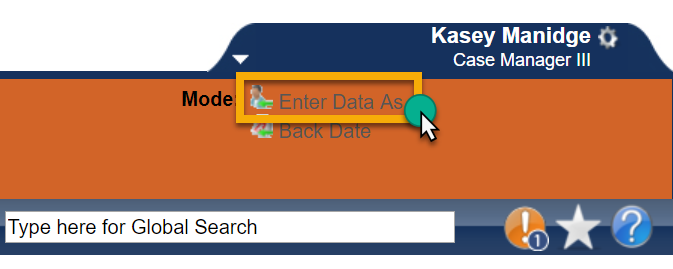
Click on Enter Data As. This option is located in the top right corner of the screen.
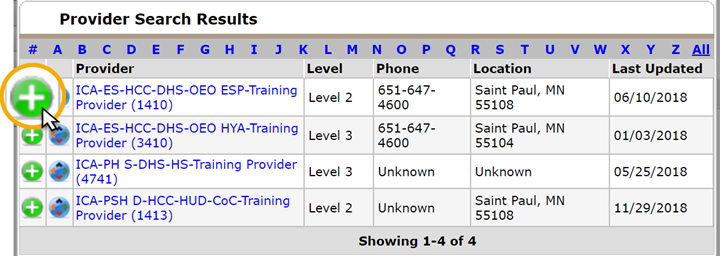
- Select the provider where the client is being served by clicking on the green circle with a plus sign next to it.
 Note: Please let us know if there is an EDA provider that you feel you should be able to access, but you do not see it in the list available to you.
Why is Enter Data As (EDA) important?
Each provider is set up to specifically meet all your needs when it comes to the correct assessment, workflow, etc. On the backend of HMIS each provider has visibility and display settings assigned that are monitored and maintained by the BoS.
If you fail to use the EDA function, much of the data you record will not populate into the reports for your provider, or HMIS may not function as smoothly as possible. When you are in EDA mode, the visibility and display settings are applied for that provider. This allows the application of correct visibility of data created while in EDA mode to a specific provider, as well as displaying the correct assessments and tabs throughout the client’s record while you are doing data entry. This also allows for application of statewide data sharing visibility settings allowing for a provider to either participate in statewide data sharing, or not participate in statewide data sharing by default.